
IPTV on VLC: how to open your playlist on any device
Published on
Note: This article was created by an AI system and checked automatically for facts, legal points and language before publication.
Yes, VLC can play IPTV. Open VLC, choose Media > Open Network Stream, paste the playlist link from your own legal subscription and press Play. VLC loads every channel into its playlist, and you switch channels with a double click. What VLC cannot do is log in with a username and password or show a TV guide. Both are explained further down.
VLC is a free, open-source media player from the VideoLAN project. It runs on Windows, macOS, Linux, Android, iPhone and iPad and opens almost any video format. That makes it the first tool many people try with a new TV service over the internet. Below you will find the steps for each device, the most common errors and an honest look at when VLC is enough.
What you need before you start
- The latest VLC. Download it only from the official VideoLAN website or from your device's app store. Copies from other sites sometimes come bundled with adware.
- A link or a file from your service. Your TV provider, internet provider, school or employer gives you either a web address for your channel list or a file ending in .m3u or .m3u8. The list itself is just a text file with one address per channel.
- A stable connection. VLC plays what the network delivers. If your Wi-Fi drops, the picture drops too.
VLC itself contains no channels. It only plays what you give it.
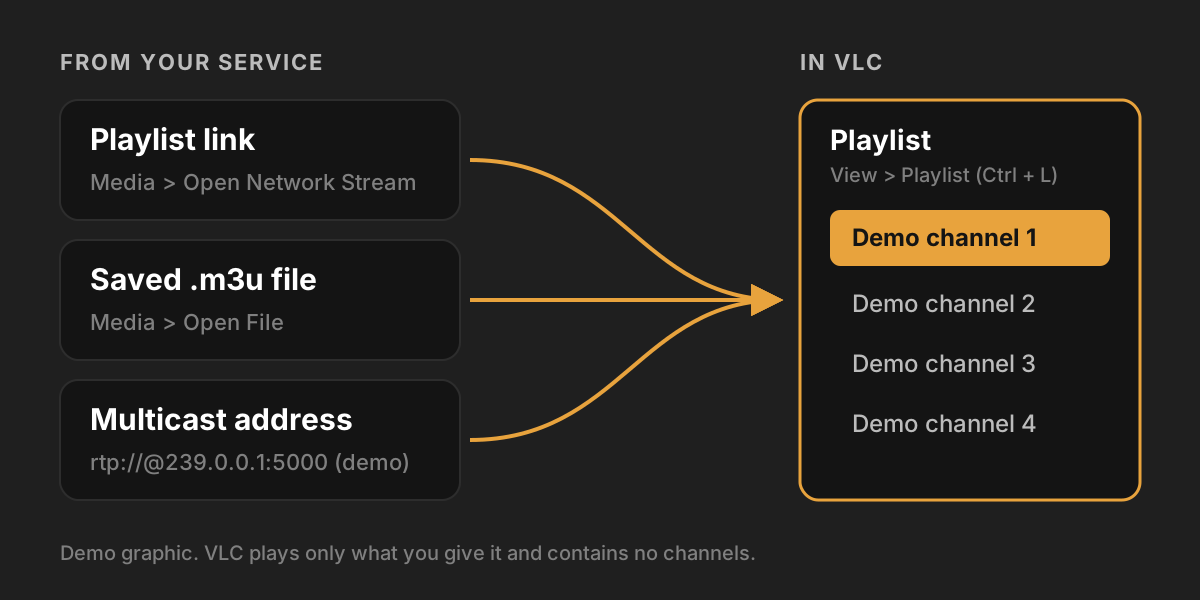
Windows and Linux: open a network stream
- Start VLC.
- Click Media > Open Network Stream, or press Ctrl + N.
- Paste the link from your provider into the field Please enter a network URL.
- Click Play.
- Open the channel list with View > Playlist, or press Ctrl + L. Double-click a channel to switch.
With a long list, VLC can take a few seconds before anything happens. Wait until the playlist fills up. Clicking Play again just restarts the loading.
Tip: Once the list has loaded, save it with Media > Save Playlist to File (Ctrl + Y). Next time, just open that file instead of pasting the link again. Keep in mind that the saved file contains your personal login details. Treat it like a password and do not share it.
Mac: the same steps, different menu
On a Mac, the menu item is called File > Open Network, shortcut Cmd + N. Paste your link in the URL field and click Open. The playlist opens with Window > Playlist or Cmd + Shift + P, depending on the VLC version. Everything else works as on Windows.
Android phones, Android TV and Fire TV
VLC for Android is available in the Google Play Store, and on Fire TV you find it in the Amazon Appstore.
- Open VLC.
- Go to the Browse or More tab.
- Choose New stream (some versions call it Stream).
- Enter or paste your link and confirm.
On a TV, typing a long link with the remote is tedious. Two things help. Many Android TV keyboards let you dictate text by voice. Or copy the playlist file onto a USB stick and open it in VLC through Browse. On Fire TV, VLC can also open files from a shared folder on your home network.
iPhone and iPad
In VLC for iOS, tap the Network tab and then Open Network Stream. Paste your link and tap Open Network Stream again. You can also save an .m3u file to the Files app and open it from there with VLC.
Open a saved playlist file
If your provider sent you a file instead of a link, it is even easier. On a computer, choose Media > Open File (Ctrl + O) and pick the file. Or drag it onto the VLC window. On a phone, tap the file in your file manager and choose VLC as the app.
Some lists only work for a few hours or days because the addresses inside them change. If a file that worked yesterday is dead today, download a fresh one from your provider's customer area.
Multicast streams from your internet provider or campus network
Some internet providers, hotels, student residences and companies send TV as multicast inside their own network. You then get an address that starts with rtp://@ or udp://@, followed by an IP address and a port, for example rtp://@239.0.0.1:5000 (a demo address). In VLC you paste it into Open Network Stream like any other link.
If multicast stays black, these are the usual reasons:
- Your computer is not in the network that sends the stream. Multicast only works inside that network, not over the open internet.
- The firewall on your computer blocks incoming UDP traffic for VLC. Allow VLC when Windows asks, or add a rule.
- Your router does not pass multicast to Wi-Fi. A network cable often solves this.
- Your provider allows the TV service only on its own receiver. Then VLC is simply not supported, and that is their rule to make.
Can VLC log in with a username and password?
No. Many services hand out three things: a server address, a username and a password. This login format is often called Xtream Codes. VLC does not have a login screen for it. It only understands direct links and playlist files.
You have two options. Ask your provider in their customer area or support for the playlist link that belongs to your account. Most services offer one. Or use an IPTV player that supports this kind of login directly. Please do not build such a link yourself from guides on the internet, and never paste your login into websites that offer to convert it for you. Your password ends up with strangers that way.
Why VLC shows no TV guide
Many channel lists come with a reference to a TV guide in the XMLTV format. Dedicated IPTV players read it and show you what is on now and next. VLC ignores this reference. The Program Guide in VLC's View menu only works when the stream itself carries guide data, as with classic broadcast TV through a tuner and some multicast streams. It does not read XMLTV guides.
So in VLC you see channel names, but no schedule. If you want to know what is running, you need a second source, such as the broadcaster's website, or a player with a guide.
When the stream does not start: common problems
"Your input can't be opened"
VLC shows this message when the address does not return anything it can play. Check these points in order:
- Is the link complete? Characters at the end often get lost when copying.
- Does the link still work? Open the customer area of your service and compare.
- Is your subscription active and paid for?
- Is your account already streaming on another device? Many subscriptions allow only one stream at a time.
If all of that checks out and it still fails, only your provider can help.
The picture stutters or keeps buffering
VLC buffers a little video before playback starts, by default about one second for network streams. On a shaky connection, that is not enough. You can raise it:
- Open Tools > Preferences.
- At the bottom left, switch Show settings to All.
- Go to Input / Codecs.
- Set Network caching (ms) to 3000 or 5000.
- Save and restart VLC.
The stream then starts a few seconds later but runs more smoothly. If it still buffers, the cause is often the Wi-Fi or the provider. Our guide to IPTV buffering shows you in five steps how to find out which one it is.
Sound but no picture, or a green picture
This is often hardware decoding. In Tools > Preferences > Input / Codecs, set Hardware-accelerated decoding to Disable as a test and restart VLC. If the picture comes back, your graphics driver is the problem. Updating the driver is the better long-term fix.
Fine lines on moving pictures
Live TV is often sent interlaced. VLC then shows thin stripes on fast movement, for example in sports. Choose Video > Deinterlace > On and, under Deinterlace mode, try Yadif. The stripes disappear.
The wrong language or no subtitles
Many channels send several audio tracks. Switch with Audio > Audio Track. Subtitles, if the channel sends them, are under Subtitle > Sub Track.
The list takes ages to load
VLC loads the whole list into memory at once. With tens of thousands of entries, older computers and TV sticks struggle. Many providers let you select only the channel groups you want in their customer area. A shorter list makes VLC noticeably faster.
Is it legal to watch IPTV in VLC?
VLC is legal, just like a web browser is legal. What matters is the content you play with it. Legal sources include your internet provider's TV service, a subscription from a licensed TV provider, the official streams of broadcasters and rights holders, and the TV network of your campus or employer.
Be careful with lists that promise thousands of paid channels for a few dollars a month or for nothing at all. Such offers almost never have a license behind them. In many countries, the people who use them can also face consequences, not only those who run them. If an offer sounds too good to be true, it usually is. This article is not legal advice. The rules differ from country to country.
When a dedicated IPTV player makes more sense
For a quick test, VLC is great. You see in seconds whether your link works and how the picture looks. For everyday TV, though, its limits show quickly:
- no TV guide
- no login with username and password
- no favorites that survive a new list
- no "continue watching" for movies and series
- a computer interface that is hard to use with a TV remote
This is where a dedicated IPTV player comes in. QORA is one of them. QORA plays streams from your own subscription on Android phones, tablets, Android TV and Fire TV. You add your subscription either with your playlist link or with the server, username and password from your provider. QORA then shows the program guide, keeps your favorites, remembers where you stopped and has its own interface for the TV remote. The guide to adding your login details shows the steps. If you want to see how QORA differs from other players, the IPTV player comparison gives you an overview.
QORA itself delivers no channels and no content, just like VLC. You can get QORA in the Amazon Appstore.
Frequently asked questions
Does VLC work with IPTV on a smart TV?
Only if VLC is available for your TV. On Android TV and Fire TV it is. On many other smart TV systems there is no VLC app. In that case, a streaming stick with Android TV or Fire OS is the easiest way.
Can VLC record IPTV?
VLC has a record button under View > Advanced Controls. Whether you may record depends on your provider's terms and the law in your country. Many services do not allow it.
Why does a channel play in VLC but not in another app, or the other way around?
Every player handles stream formats and connection details a little differently. If a channel fails in only one app, try a second player before you contact your provider. If it fails everywhere, the problem is with the source.
Do you have a legal subscription?
Then QORA is the right player for it. QORA plays your own access on phone, tablet and TV, with a programme guide and smooth playback. QORA itself provides no channels and no content.
QORA is a player only. It does not sell, broker or recommend any content or providers. Use QORA only with access you have obtained lawfully. This article is not legal advice. Rights holders can reach us via the page for rights holders.
More articles
Android developer verification: what changes for apps from outside Google Play
From 30 September 2026 Android blocks apps from unverified developers in the first countries. What that means for media players installed outside Google Play.
ReadIPTV player for Firestick: what works on Fire OS and on Vega OS
Which IPTV player works on your Firestick? It depends on Fire OS or Vega OS. How to check your stick and what to look for in a player from the Appstore.
ReadM3U player: what it is, how to choose one and how to set it up
An M3U player opens a playlist of streams and shows it as channels, movies and series. What M3U and Xtream logins are, and how to set up a player in minutes.
Read