
Setting up the IPTV app for Fire TV
QORA is an IPTV app that also runs on Fire TV and the Fire TV Stick. You bring your own provider, whether through Xtream login details or an M3U link, and QORA sorts channels, movies, and shows into an interface built for the remote.
What you need
- A Fire TV Stick, a Fire TV box, or a TV running Fire TV.
- Your provider's access (host, username, password, or an M3U link).
- A stable internet connection, ideally wired or on strong Wi-Fi right next to the Fire TV.
How to install QORA on Fire TV
- Search the Amazon Appstore once it's available. For Fire TV, QORA follows the usual path through the Amazon Appstore right on the device. Until it's listed there, tap "Notify me" on the homepage and we'll let you know as soon as it's live.
- Open the app. Once installed, launch QORA from your Fire TV home screen.
- Enter your access. Enter your Xtream login details or your M3U link. On Fire TV, you can do this letter by letter with the included remote, or use voice search for the link.
- First channel. Once loaded, QORA shows your channels, movies, and shows, sorted and ready. From search to your first channel usually takes under a minute.
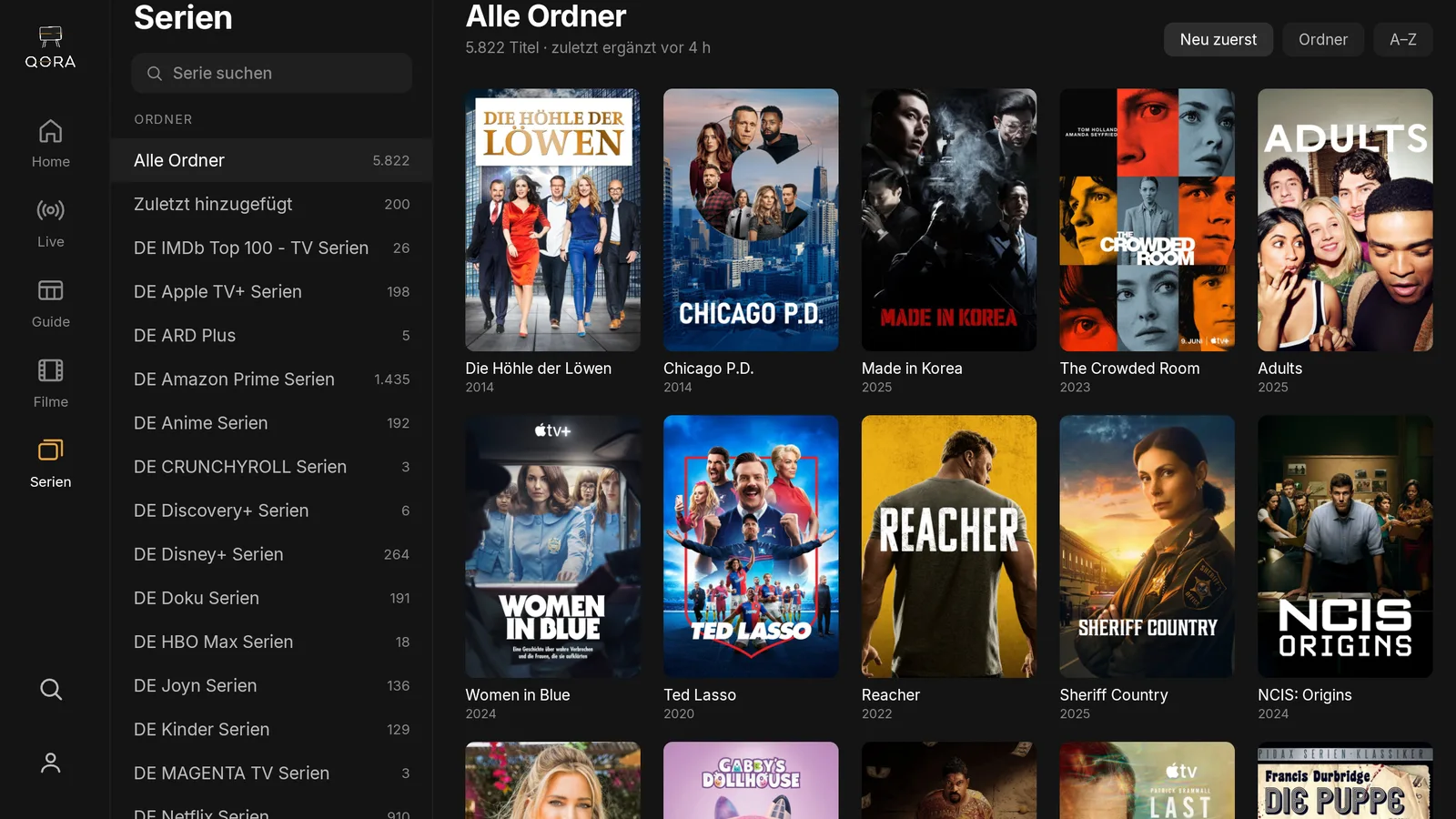
Using the Fire TV remote
The arrow keys move the focus through the rows, the center button confirms, and a long press on the center button sets a favorite (marked with a gold star). The back button steps you out of a view one level at a time, never straight back to the start.
While Fire TV doesn't know the app yet
As long as QORA isn't in the Amazon Appstore yet, there's no sideload route we recommend: anything that doesn't come from the Appstore stays a test build with its own approval process and isn't meant for everyday use. The Play Store path for Android TV and the Appstore path for Fire TV are the routes we're preparing for release.
Multiple devices in the same household
A Fire TV in the living room and a phone for on the go, with the same favorites and continue-watching spot: that's what QORA Plus connects. Without QORA Plus, each access stays tied to the device where you entered it.
Didn't work?
Check your internet connection first: a Fire TV Stick at the weakest Wi-Fi spot in the home is the most common cause of a slow-loading picture, not the app. If entering your access data triggers an error, double-check the host, username, and password for typos. If the problem persists, message us via WhatsApp in the footer, with the device model and the exact message.