
Setting up QORA as an M3U player on phone and tablet
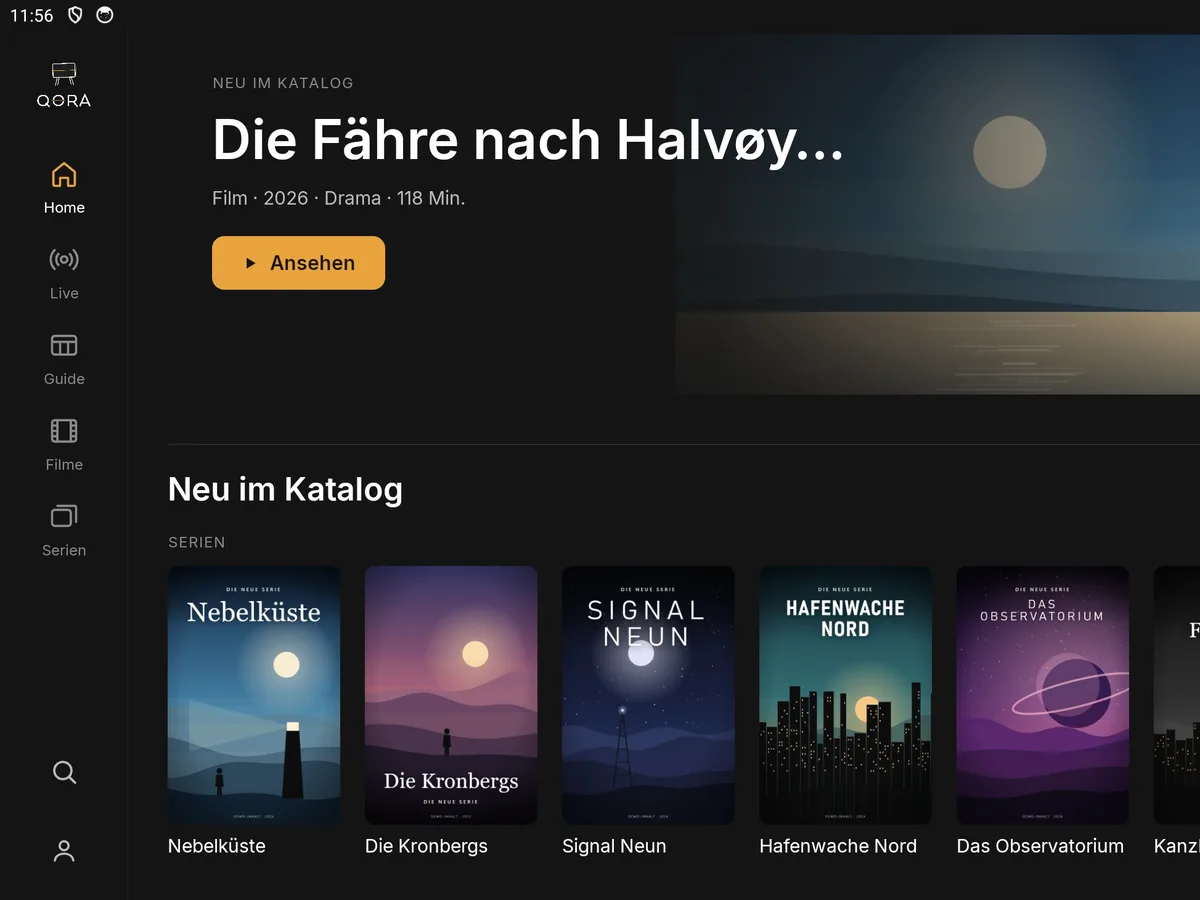
QORA also runs as an IPTV and M3U player on Android phones and tablets. The interface looks exactly like on TV, just built for touch instead of a remote: the same rows, the same sorting, the same access, if you use QORA Plus.
What you need
- An Android phone or tablet running Android 6 or newer.
- Your provider's access, either Xtream (host, username, password) or an M3U link.
- For syncing with your TV: QORA Plus.
How to set up QORA on phone or tablet
- Get QORA. Once QORA is available on the Google Play Store, you'll install it directly from there. Until then, tap "Notify me" to sign up.
- Enter your access. Open QORA, choose Xtream or M3U, and enter your details. On phone, you'll type it in on the on-screen keyboard, usually faster than on TV.
- Let it load. QORA fetches your provider's channels, movies, and shows and sorts them automatically.
- Swipe instead of arrow keys. On phone and tablet, you navigate the rows with swipes and taps, and a long press on a tile sets a favorite.
Send your access from phone to TV
With QORA Plus you don't have to type your Xtream access or M3U link twice: enter it once on your phone and send it straight to your TV. That saves time, especially with long, typo-prone Xtream login details.
Keep watching on the go
Without QORA Plus, your progress stays tied to the device you watched on. With QORA Plus, your tablet picks up exactly where you left off on the TV, and the other way around too.
Keep an eye on battery and data
Like any video streaming, IPTV playback uses data and battery. On mobile data, switch to a lower resolution if your provider offers several quality levels, it goes easy on both.
Multiple providers on the go too
If you use several IPTV providers at home, say one for live channels and another for a specific movie catalog, that also applies with QORA Plus on phone and tablet: both accesses sit cleanly separated side by side, and you switch between them in settings without re-entering either one.
Didn't work?
If playback doesn't start on your phone but works fine on TV, check whether your provider allows more than one simultaneous connection. Many plans only allow a single connection, in which case the TV and phone block each other. For questions about the access itself, message us via WhatsApp in the footer.