
Setting up the IPTV app for Android TV and Google TV
QORA is an IPTV app for Android TV and Google TV. You install it once, enter the access from your own provider, and then watch channels, movies, and shows in a clean interface built for the TV. QORA doesn't provide any content itself, so you'll need your own IPTV provider with Xtream login details or an M3U link.
What you need
- An Android TV or Google TV set, or a box running Android TV.
- Your provider's access: either a host, username, and password in Xtream format, or an M3U link.
- A stable internet connection. How smoothly the picture runs depends mainly on your provider and your connection, not just the app.
How to set up QORA on Android TV
- Get QORA. Once QORA is available on the Google Play Store, you'll install it directly from there onto your TV. Until then, tap "Notify me" on the homepage and you'll be the first to know.
- Open the app and enter your access. On first launch, QORA asks for your access. Choose between Xtream login details (host, username, password) or an M3U link, depending on what your provider gave you.
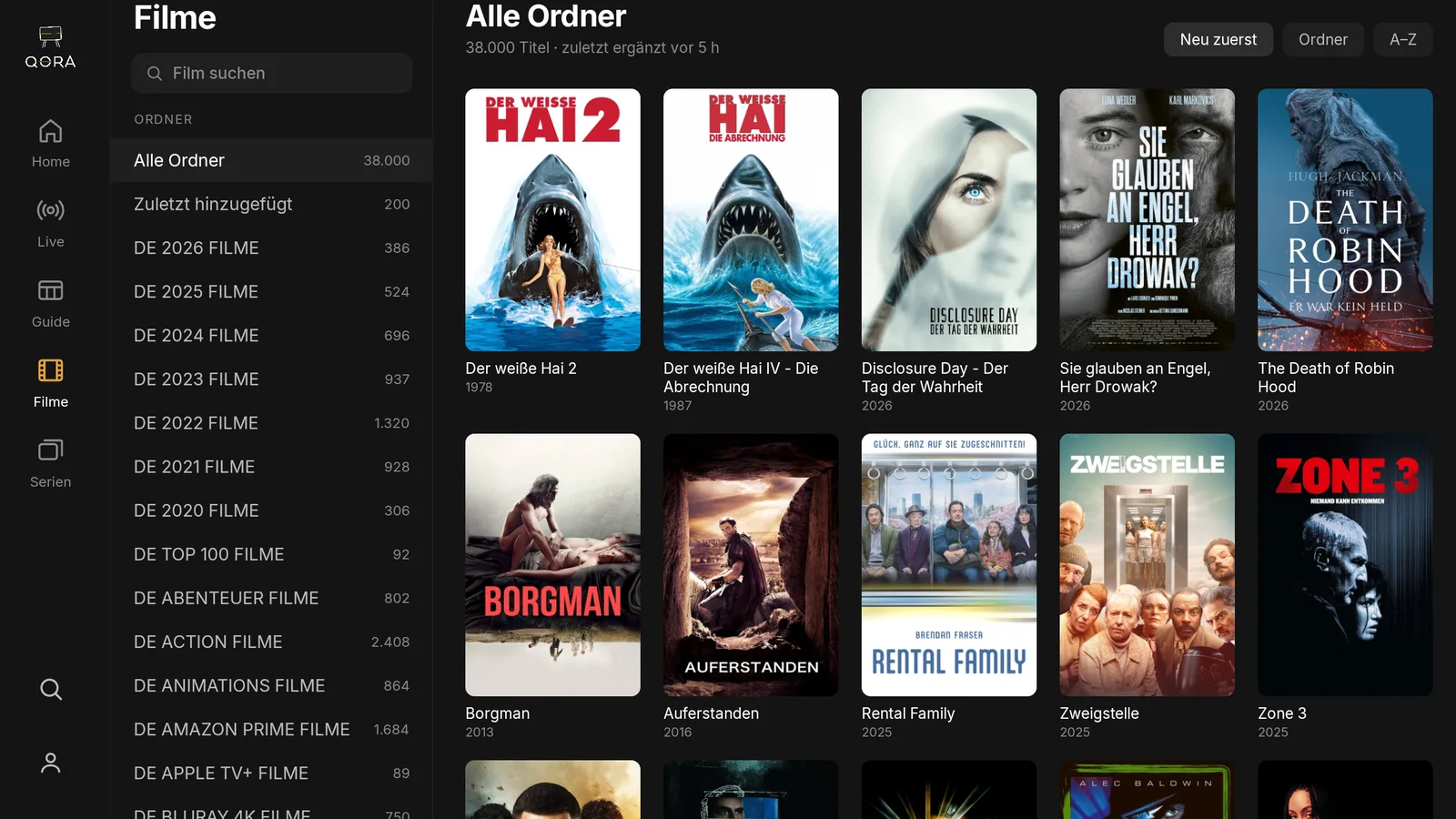
- Wait a moment while QORA loads. The app fetches your provider's channel, movie, and show lists and sorts them into Live, Movies, and Shows.
- Get going. Use the remote to move through the rows, one button press opens search, and a long press on OK sets a favorite.
The difference between Android TV and Google TV
Google TV is the interface Google places on top of Android TV on newer sets and the Chromecast box. For QORA it makes no difference: the app runs on Android TV underneath, whether Google TV sits on top or not. Installation and use are identical.
Set up parental controls while you're at it
If children use the same TV, it's worth setting up parental controls right away: in settings, you set a PIN, and locked folders become invisible anywhere in the app and can't be played. It costs nothing and works even in the free version of QORA.
Multiple devices, one access
Want to use the same access on your phone or tablet too, and keep your progress in sync across devices? That needs QORA Plus. Without it, the access you just entered stays tied to this TV.
Didn't work?
First check whether you entered the host, username, and password without any stray spaces at the start or end, that's the most common mistake. If the picture stays dark or nothing loads, it's usually the provider that's unreachable at that moment, not the app. If the problem persists, message us via WhatsApp in the footer, ideally with the exact error text.